Teacher guide
How to teach paid one-to-one classes on Kokani Connect: set up, take bookings, teach, record sessions and get paid.
The short version
- You set your prices. An hourly price in rupees for each subject. Kokani Connect keeps 15%; you receive 85%.
- Most learners start with a free 20-minute intro. After it, you send a learning plan with a price. If you allow it, learners can also book and pay for sessions directly.
- Learners pay before the course starts. We pay you 7 days after the course is complete (monthly for long courses).
- Reply within 24 hours to intro requests, and record each session within 24 hours.
- Everything stays on Kokani Connect: messages, meeting links and payments. Phone numbers and emails are hidden automatically.
1Before you start
You need four things:
- A Kokani Connect account and an educator profile. Open My teaching (or “Teach on Kokani Connect” in the footer) and click Create educator profile. Our team approves the profile first.
- Your own Zoom, Google Meet or Microsoft Teams link. One permanent link is enough.
- A quiet place, a working camera and microphone, and a good internet connection.
- A bank account or UPI ID to receive payments. You give these to our team privately when we first pay you; they are never stored on the website.
2Set up paid classes
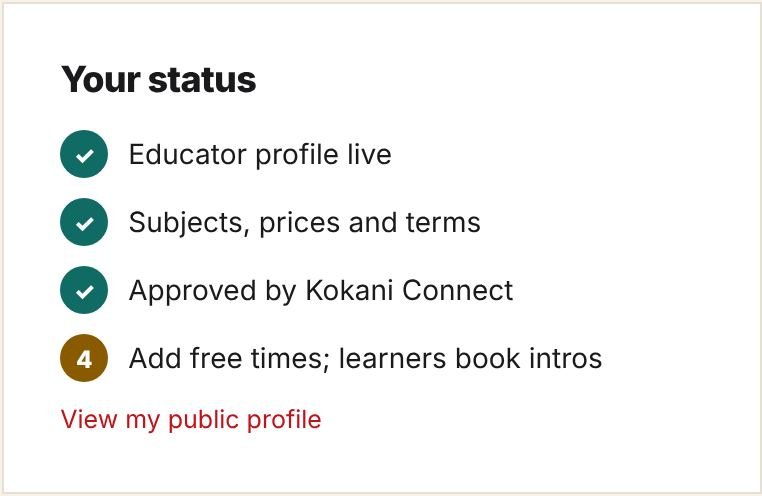
Open My teaching from the account menu (top right, under your name). Scroll to Subjects, prices and details.
- Default price per hour. Type your usual hourly price in rupees. Learners outside India see the same amount in US dollars at our current rate.
- Subjects. Add each subject, the level it is for, and a price if it is different from your default. Click + Add subject for more rows.
- Session lengths you offer: 30, 45, 60 or 90 minutes.
- Who you teach (Class 1–7 up to Professionals) and the languages you teach in.
- Intro video (optional). A YouTube link plays on your profile. Keep it under 2 minutes, and don’t show phone numbers or other contact details.
- Your meeting link. Learners never see it; they join with the Join button.
- Direct booking. Leave “Learners can book and pay for sessions without an intro” ticked, or untick it if you want to meet every learner first (for example, when you teach young children).
- Tick the Teacher agreement and click Save changes.
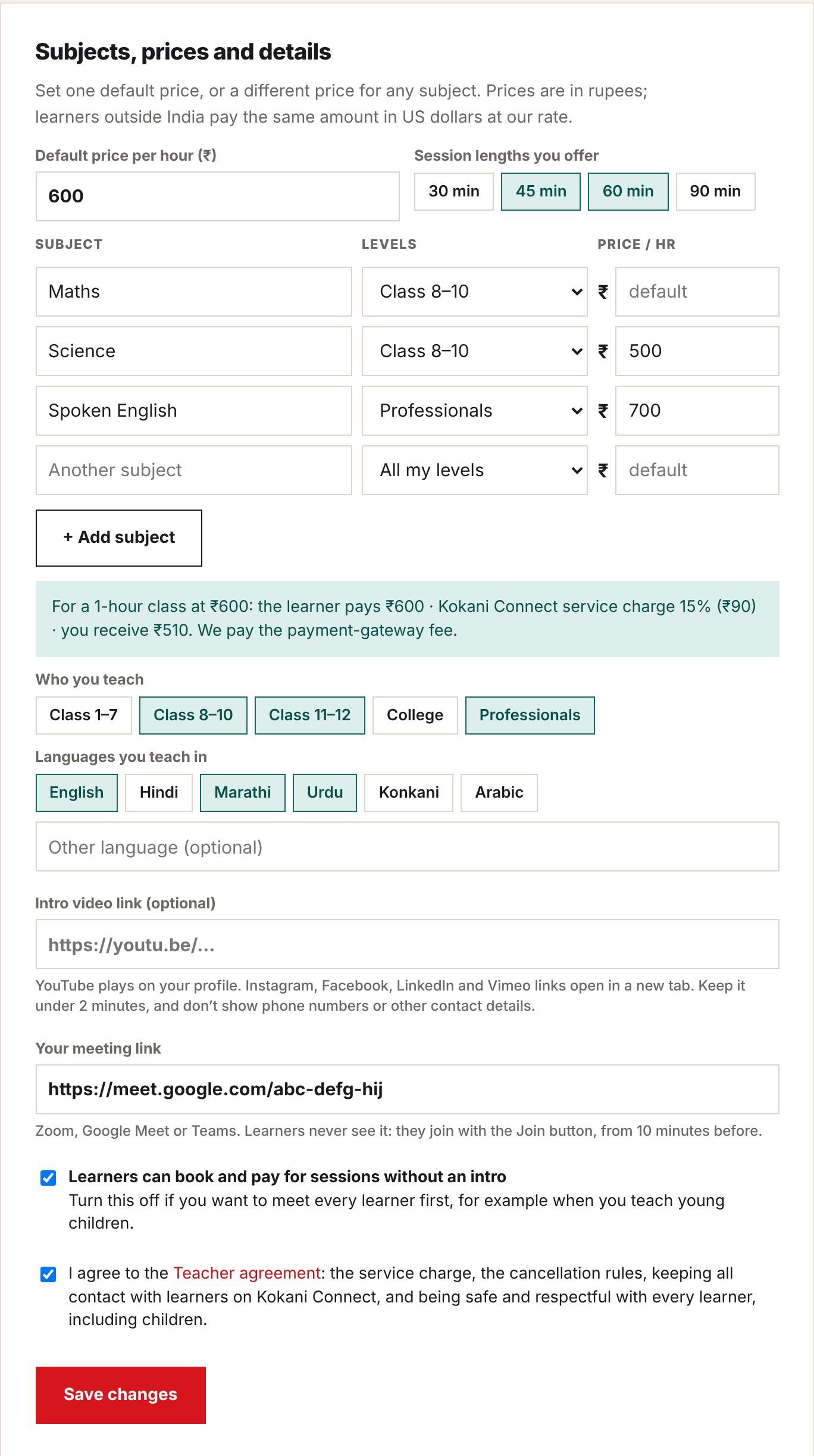
Our team checks your details within 2 working days and emails you. The Your status box shows where you are; when all four ticks are green, learners can book you.
3Add your free times
Learners can only book times you have added. In Your free times:
- Pick the date, start time and length. Times are in your own time zone (shown at the top of the page).
- Choose Repeat: just once, or the same time every week for up to 8 weeks.
- Tick the subjects this time is for, and Free intros if a learner may use it for an intro.
- Click Add time.
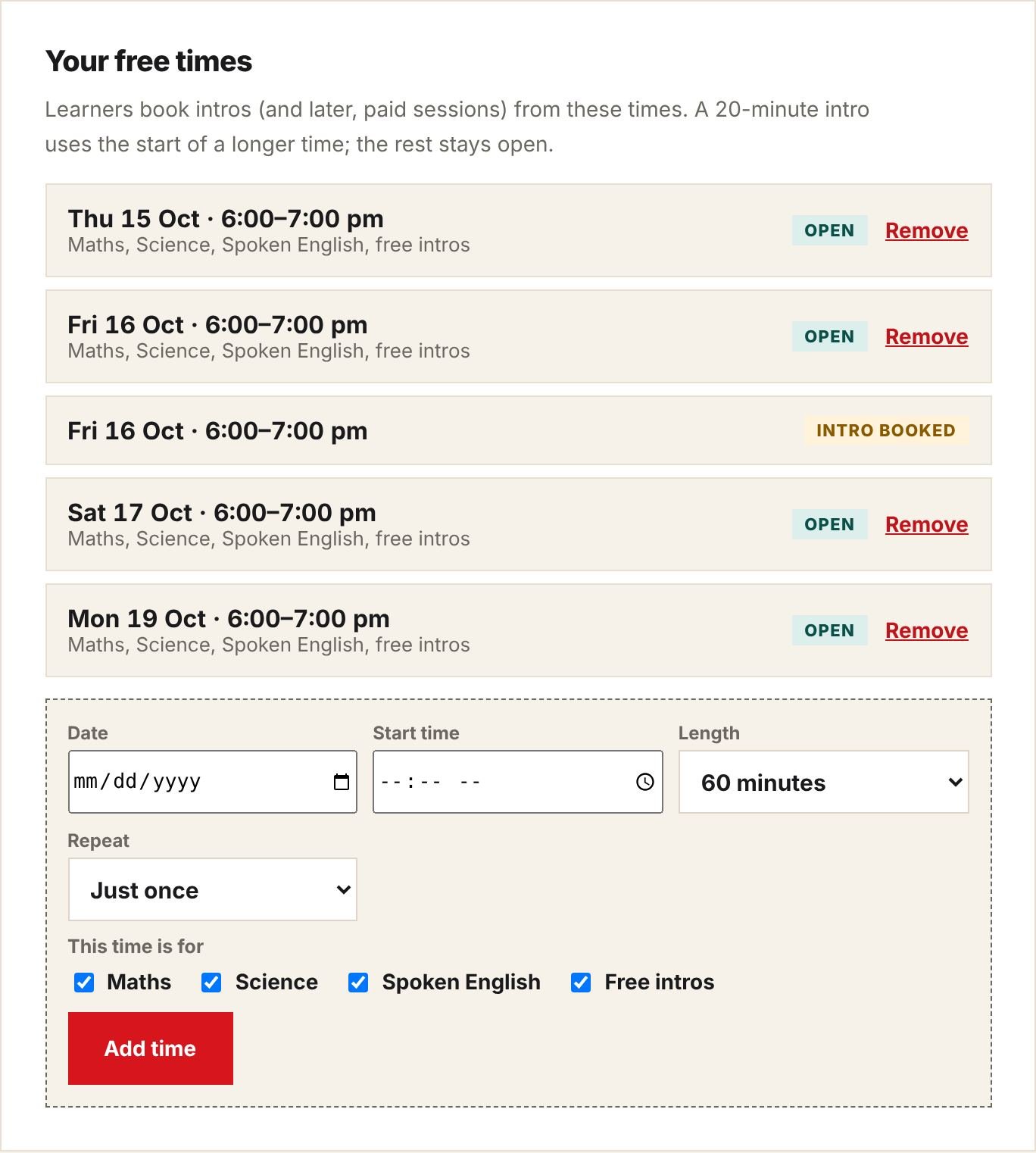
Tip. A 20-minute intro uses only the start of a longer time; the rest stays open for others. Add times at least a week ahead so learners have choices.
4Free intros
An intro is a free 20-minute call to understand the learner’s goals and level. It is not paid.
- When a learner asks for an intro, you get an email and a yellow card at the top of My teaching. It shows the subject, level, time and what they want help with.
- Click Confirm intro, or Decline and send a message suggesting another time.
- Please reply within 24 hours. We remind you after 12 hours. If the time arrives and you have not confirmed, the request is cancelled and the learner is told.
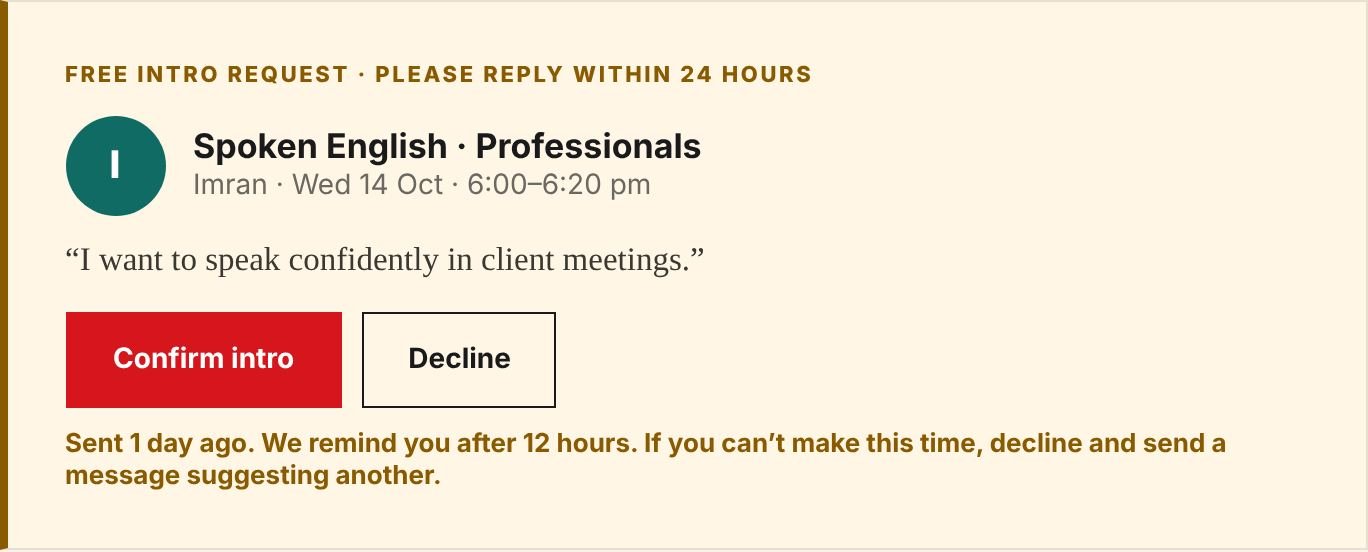
For a child, the parent books and joins with their child. You will see “booked by parent”, and only the child’s first name.
5Send a learning plan
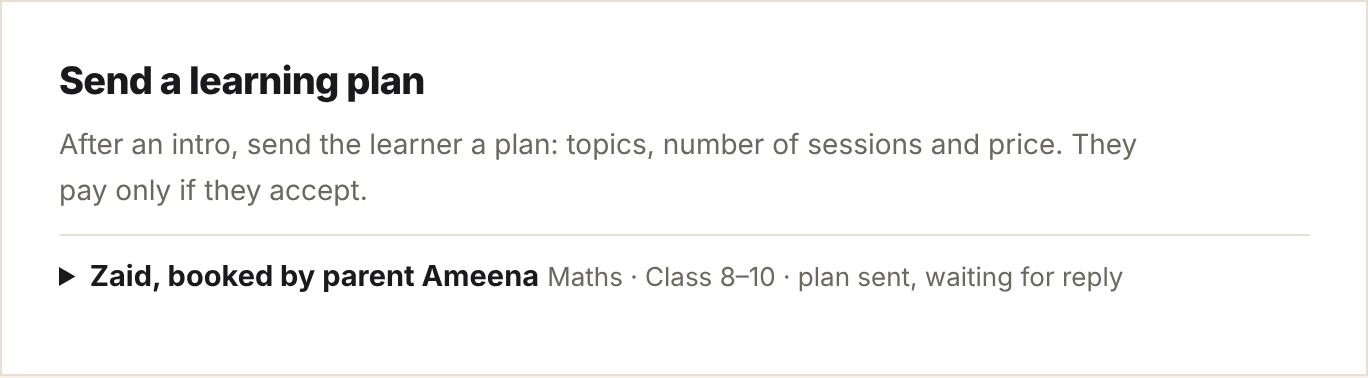
After the intro, send the learner a plan in Send a learning plan:
- Open the learner’s name, choose the subject, price per hour, number of sessions and session length.
- Write the topics, one per line, and an optional note.
- Check the green line (what the learner pays and what you receive) and click Send plan.
- You can offer a lower price than your profile, but not a higher one.
- The plan is valid for 7 days. Sending a new version replaces the old one.
- When the learner accepts and pays, they pick session times from your free times (see the Learner guide for what they see). You get an email for each booking.
6Direct bookings
If direct booking is on, a learner can skip the intro: they choose up to 10 of your free times at least 24 hours ahead and pay at once. The sessions are confirmed as soon as they pay, and appear in Upcoming sessions and in Plans as “booked directly”.
To turn it off, untick the direct booking box in Subjects, prices and details and save.
7Teach a session
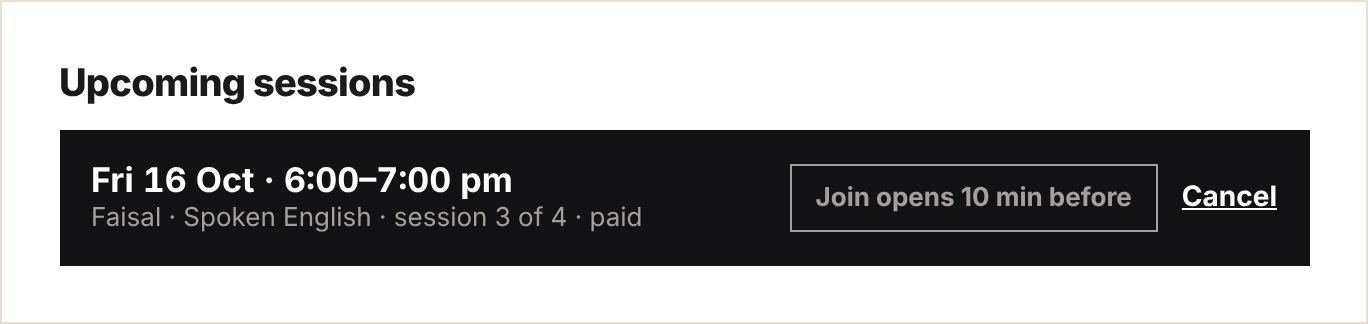
Your sessions are listed in Upcoming sessions. The Join button appears 10 minutes before the start and opens your meeting link. The learner joins the same way.
- Never send your meeting link, phone number or email in messages.
- Be on time. If a learner doesn’t join within 15 minutes, you may end the session; it counts as taken.
- A parent may sit in on any session with a child. Don’t record a session unless the parent agrees in writing in messages.
8Record each session
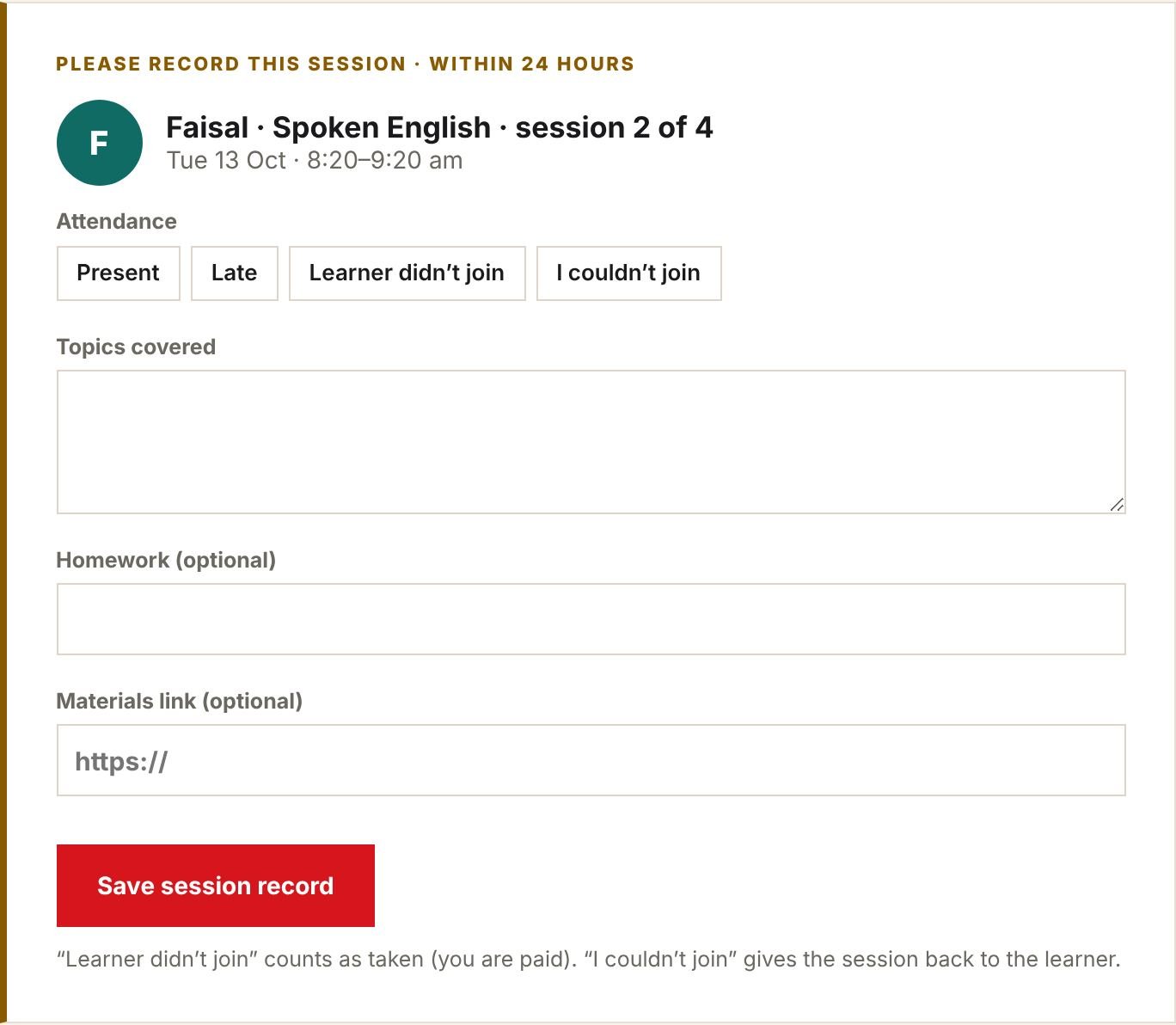
Within 24 hours after each session, fill in the card Please record this session:
| Attendance | What happens |
|---|---|
| Present / Late | Session done. You are paid for it. |
| Learner didn’t join | Counts as taken. You are paid for it. |
| I couldn’t join | The session goes back to the learner. Not paid. |
Add the topics covered, any homework, and a link to materials (for example a Google Drive file). The learner, or the parent, sees these in My learning. When all sessions of a plan are recorded, the course is complete.
9Cancellations
| Who cancels | When | Result |
|---|---|---|
| Learner | 24 hours or more before | Free. The session goes back to their plan. |
| Learner | Less than 24 hours, or doesn’t join | Counts as taken. You are paid. |
| You | Any time | The session goes back to the learner. Not paid. Please offer a new time in messages. |
To cancel, click Cancel next to the session in Upcoming sessions. Repeated late cancellations or no-shows may lead to suspension.
10Messages
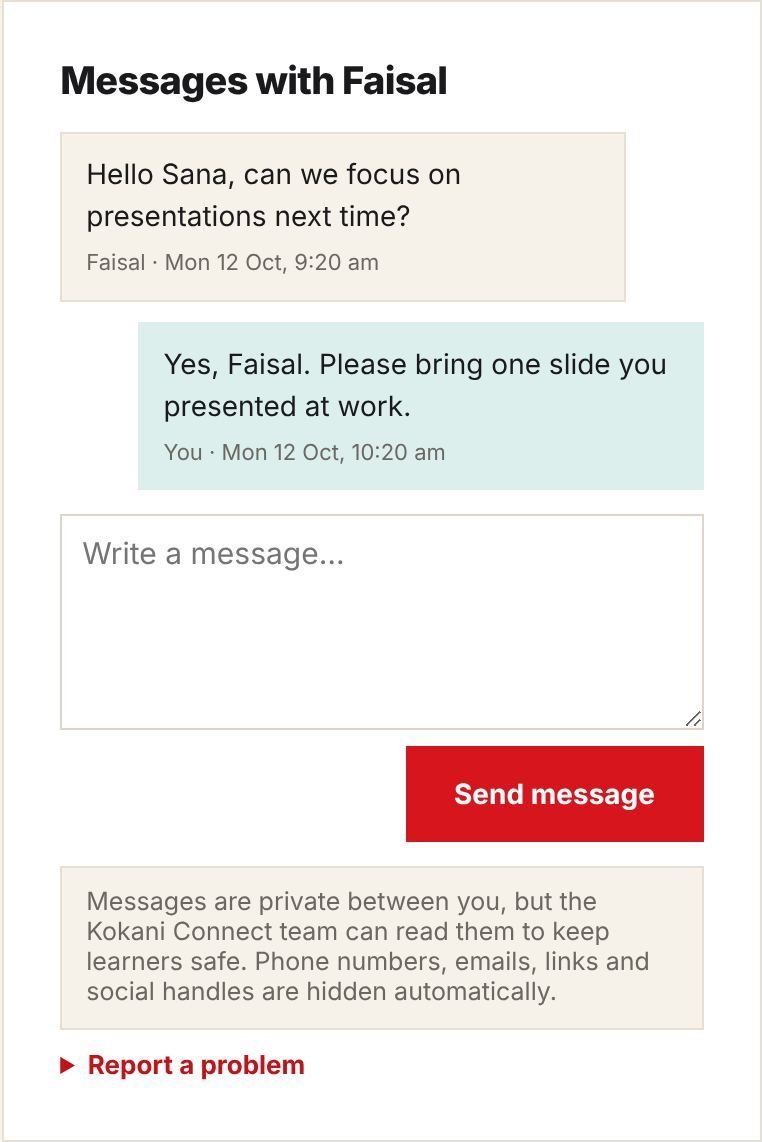
- You can message any learner who has booked an intro or a plan with you.
- Phone numbers, emails, links and social handles are hidden automatically.
- For a child, you are writing to the parent; they read every message.
- Our team can read messages to keep learners safe. Use Report a problem if something is wrong.
11Getting paid
Your Earnings box in My teaching shows three amounts, all after the 15% service charge:
| Waiting | The course is running, or finished less than 7 days ago. |
| Ready | 7 days have passed with no problem reported. We pay you soon. |
| Paid | Paid to you so far. |
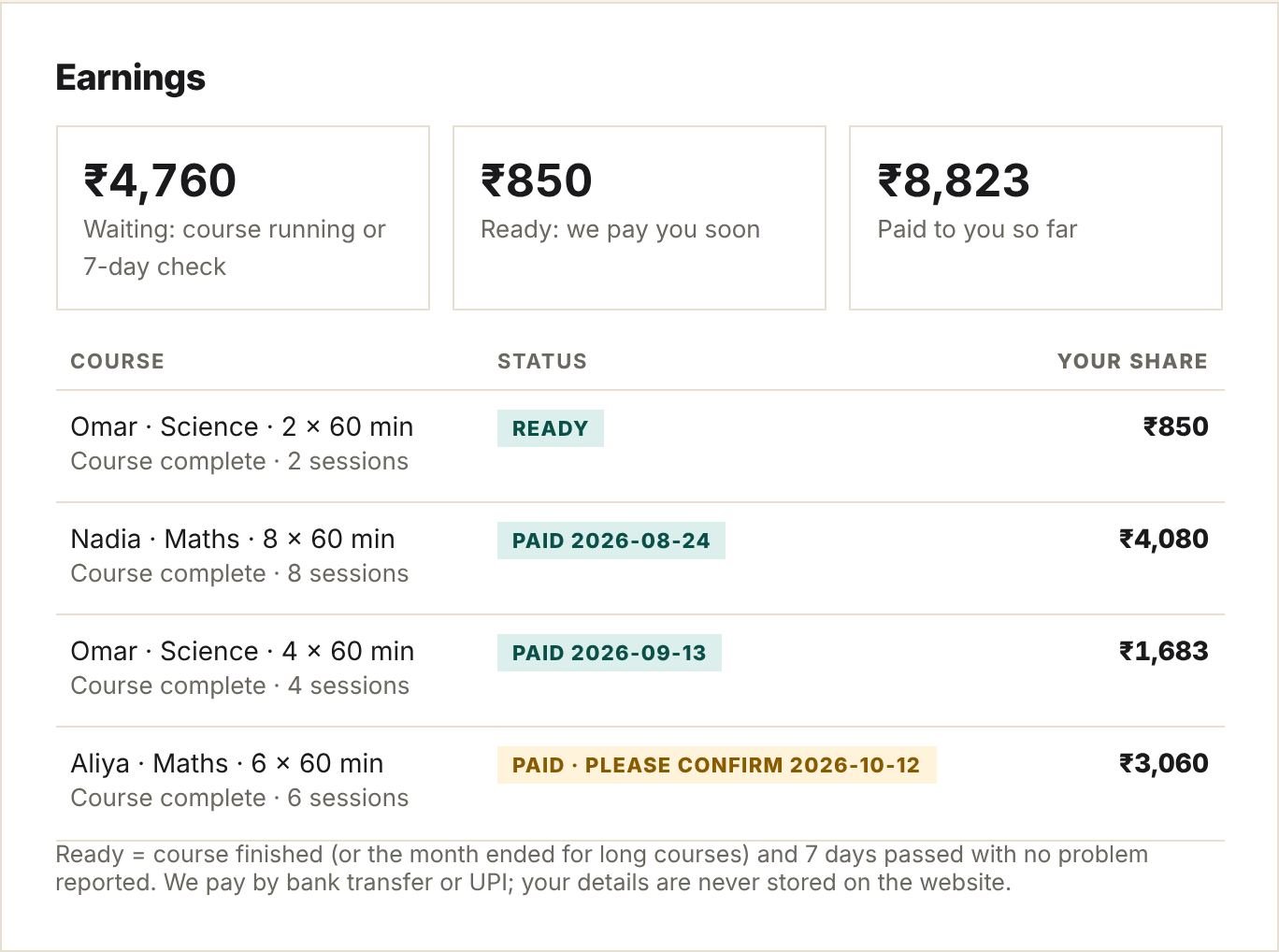
- Long courses (paid more than a month ago) are paid month by month, for the sessions completed, 7 days after each month ends.
- Learners abroad pay in US dollars. We convert what we receive into rupees and pay you 85% of that. The card shows both amounts.
- Kokani Connect pays the payment-gateway fees for now.
- You are responsible for your own income tax and, if it applies, GST.
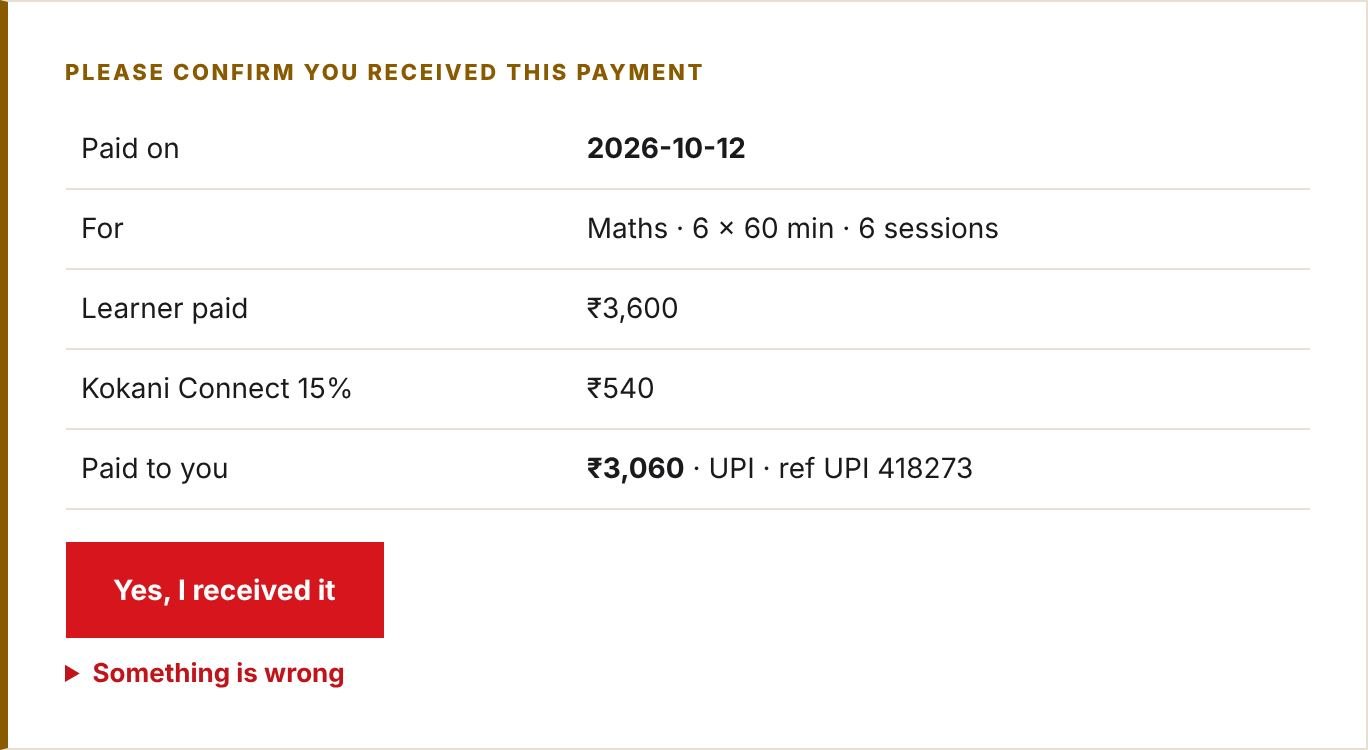
When we pay you, you get an email and a card Please confirm you received this payment. Click Yes, I received it, or open Something is wrong and tell us within 7 days.
12Reviews and ratings
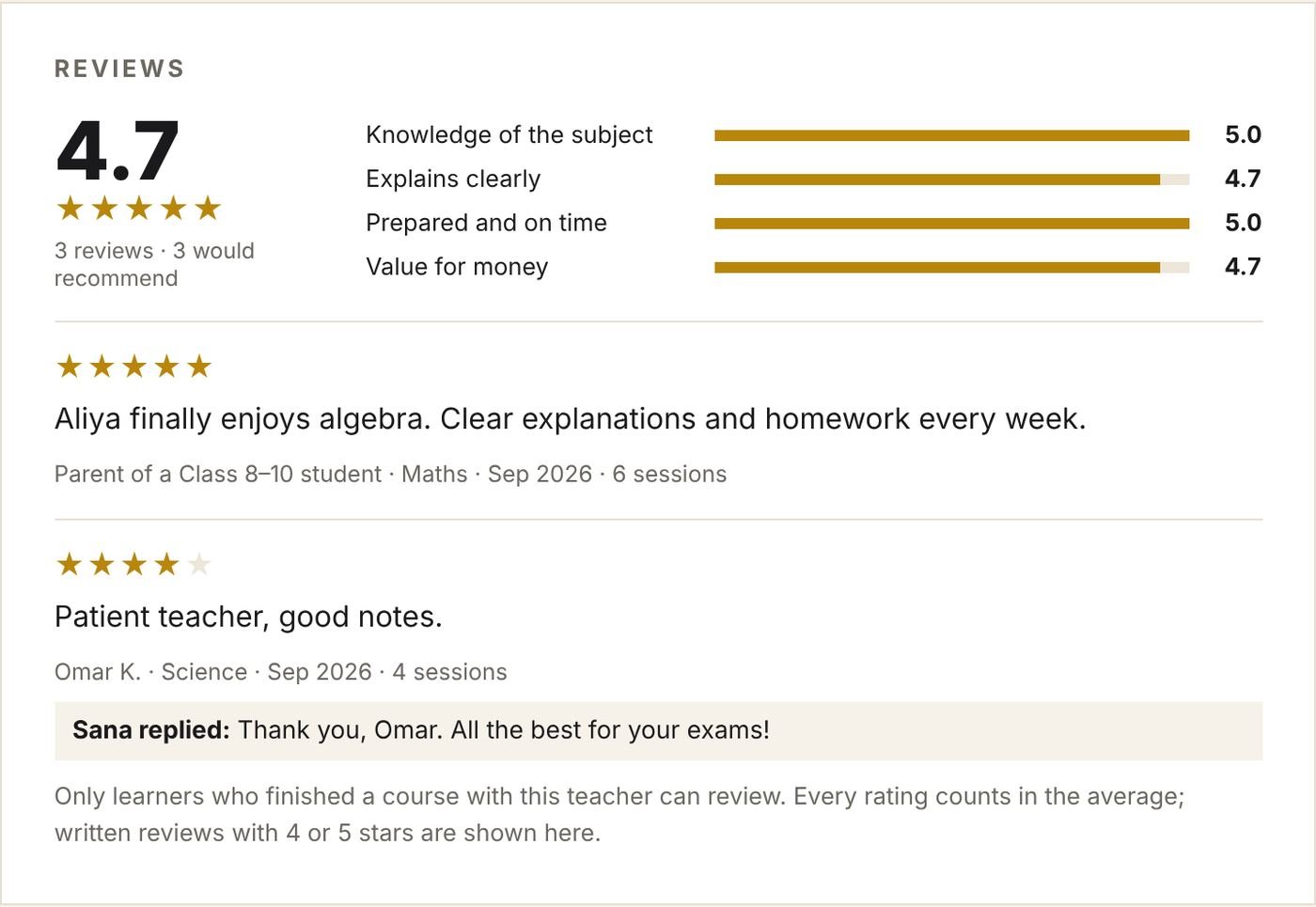
When a course is complete, the learner is asked to rate you on knowledge, clarity, preparation, value and overall, and whether they would recommend you.
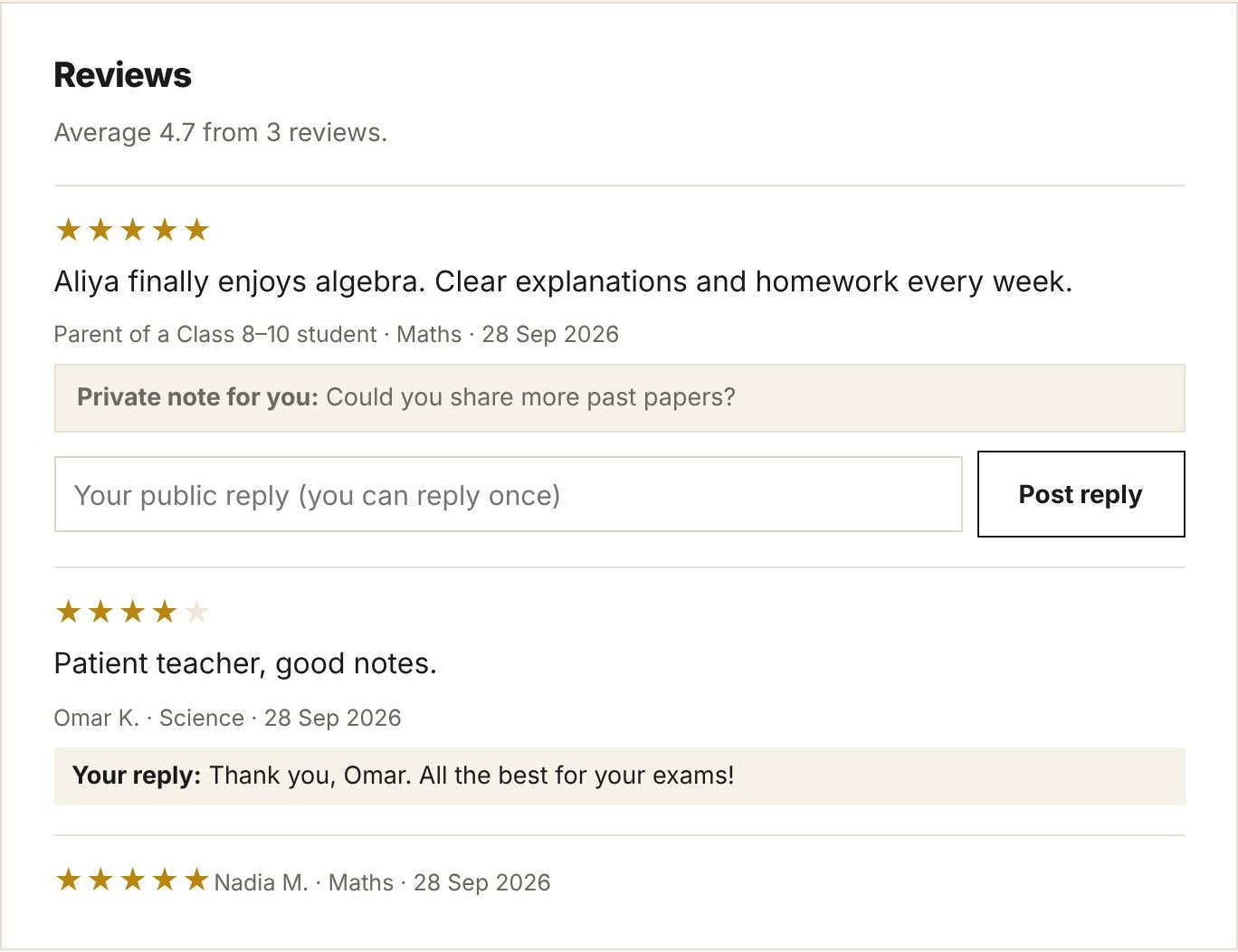
- Your average shows on your profile and in Find a teacher once you have 3 reviews. Until then you show as “New teacher”.
- Every rating counts in the average. Written reviews with 4 or 5 stars appear on your profile.
- Learners may also leave a private note that only you see.
- You can post one public reply to each written review. Keep it short and polite.
- Never offer anything in exchange for a review.
13Teaching children safely
- Teach online only, in sessions booked on Kokani Connect. Never ask to meet a child in person.
- Never ask a child for photos, personal details or private contact, and never message a child outside Kokani Connect.
- Keep your camera, background, language and behaviour appropriate at all times.
- If you are worried about a child’s safety, email info@kokaniconnect.com at once.
14Questions
- Can I change my prices?
- Yes, any time in My teaching. New prices apply to new plans, not ones already accepted.
- Can I take a break?
- Yes. Just don’t add new free times. Finish the plans learners have already paid for.
- A learner asked to pay me directly. What do I do?
- Say no politely; all payments go through Kokani Connect. This protects you and the learner.
- The learner says the session didn’t happen.
- Our team checks the session record and messages and contacts you both. Recording sessions on time protects you.
- Where do I see my statement?
- In Earnings, in My teaching: every payment with its date, sessions and reference.
Still need help? Email info@kokaniconnect.com or use the Contact page. We reply within 2 working days.